PVcase alternative
Switch from PVcase without redrawing a single rack
The real cost of leaving a design tool is the designs. PVX.AI removes it: Import PVcase Design converts your existing PVcase projects into native PVX objects inside AutoCAD, boundaries, terrain, racks, strings, devices, cables, trees, and exclusion zones included. Your team keeps its work and gains the civil engineering PVcase does not do.
Request a Demo + Free TrialLast updated:
How the PVcase import works
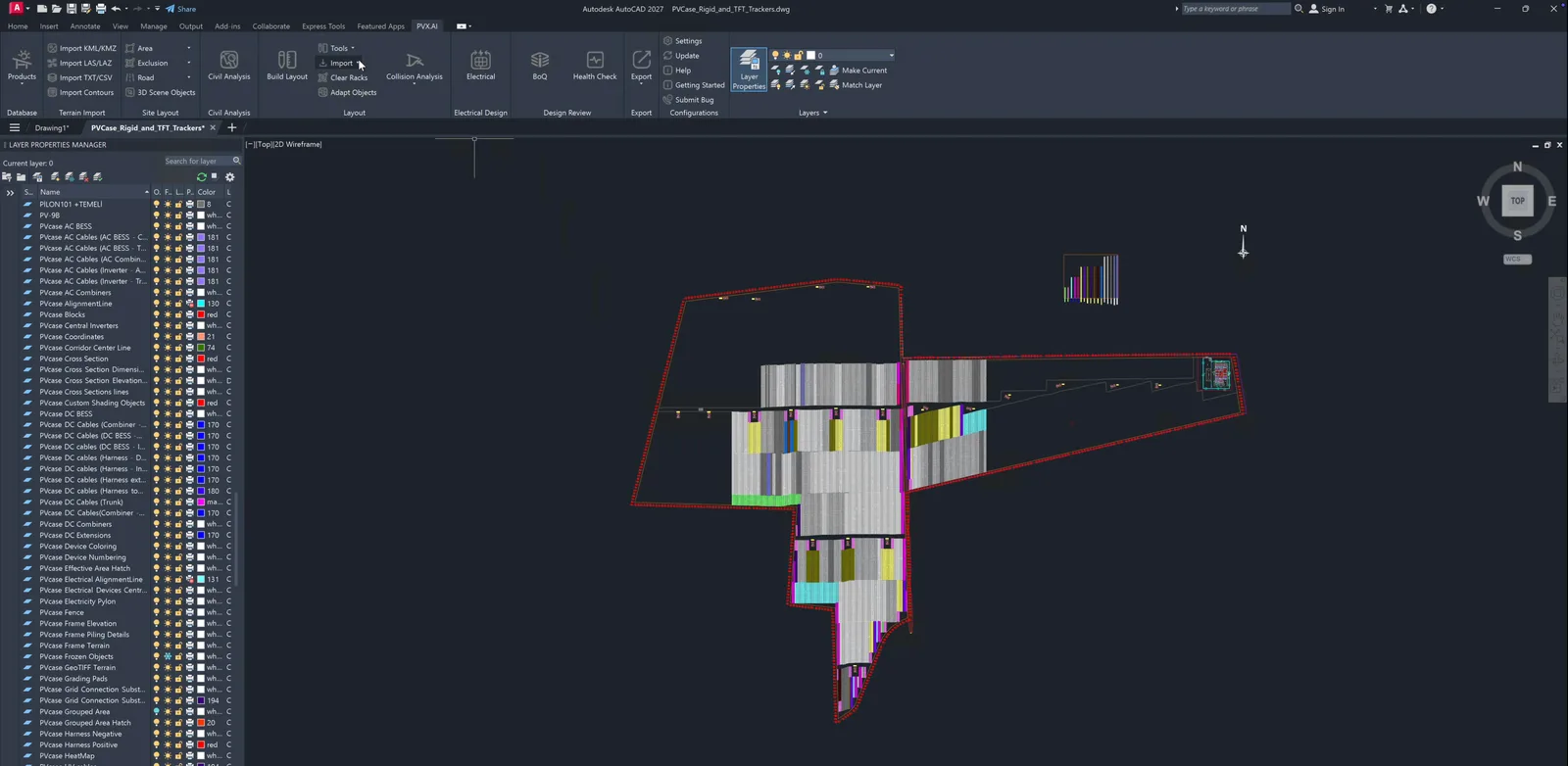
There is no export wizard and no file mapping exercise. Open the PVcase-exported DWG (or bring its content into your current drawing), then run Import PVcase Design from the Layout panel. PVX.AI scans the drawing for PVcase data and converts it in place. Progress and a summary of what was found and imported print to the AutoCAD command line.
The import is non-destructive. Your original PVcase entities stay exactly where they are; their source layers are hidden and frozen, so you can thaw them at any point and compare the original against the converted design line by line. Conversion coverage is validated against real customer PVcase projects, and the drawing keeps its unit system, with trackers imported at their true length.
What carries over
| From your PVcase design | In PVX.AI |
|---|---|
| PV area boundaries | Converted to native PVX areas, ready for placement and electrical scope |
| Terrain surface | Becomes the live PVX terrain model, ready for grading and analysis |
| Fixed / tracker / East-West racks (module mounting structures, MMS, in Indian usage) | Rack frames convert in place and matching rack specs are created in your catalog |
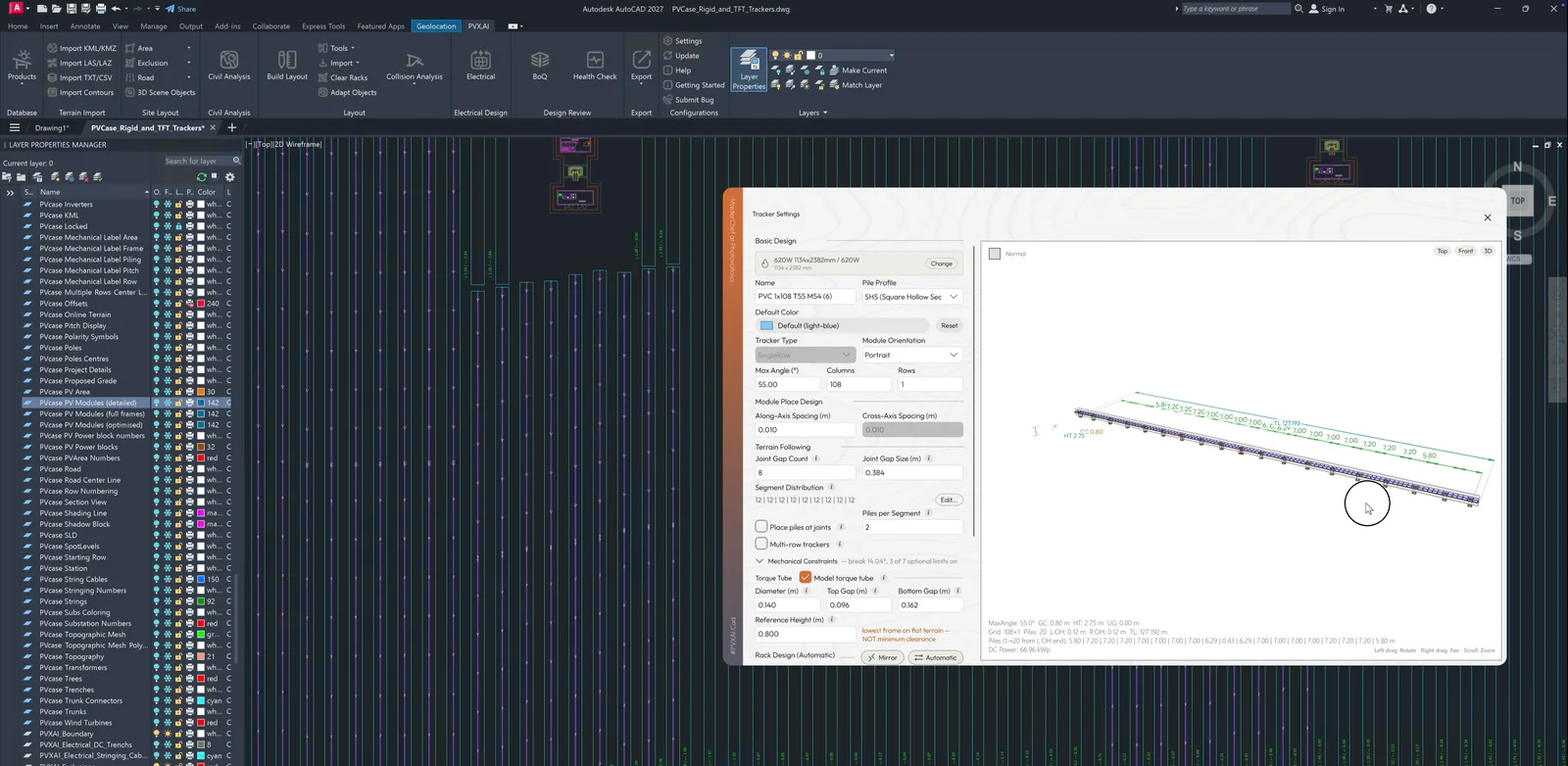
| Terrain-following trackers | Reassembled as native articulated PVX racks, joints and segments included |
| Strings and combiner boxes | Electrical structure carries over, ready for the five-step electrical flow |
| Inverters and transformers | String and central inverters and transformers convert with the hierarchy |
| Cables and exclusion zones | Routing and no-go zones arrive as native objects |
| Trees | Converted into PVX shading objects, so the shading model carries over |
What your team gains after the switch
An imported design is not a museum piece: it is live. Every converted rack adapts to the terrain, restrings, and recables like a rack built in PVX.AI. From there, the workflow extends into territory the imported design never had:

- Three grading paths. Area grading with cut/fill balance, level pads cut under each rack, or targeted adaptation that moves only the ground under failing piles. Grading, roads, and erosion control.
- Engineered roads and erosion control. Roads routed from your site entrances with culverts sized from design rainfall; RUSLE soil loss with sized basins, check dams, and swales.
- Collision analysis. Every rack judged against its spec for pile reveal, ground clearance, and slope, with one-click fixes and a pile schedule for the structural reviewer. Design review.
- Cable topology comparison. Line, U, and Leapfrog compared with per-string voltage drop; $430K saved on one 130 MWp plant. Electrical design.
- IEC trench engineering. Cable separation, trench lanes, derating from the drawn clearance, and construction-ready cross-section sheets.
- Assessment reports. Submit the completed design for a PDF assessment with P50/P90 yield, risks, and financials. PVX.Assess.
For a capability-by-capability comparison with sources, read PVcase vs PVX.
Switching a team, not just a file
PVX.AI runs inside AutoCAD 2021 through 2027, so the environment, commands, and drawing standards your engineers already use stay put. The interface ships in five languages, works in metric and imperial drawings, and a guided onboarding tour walks new users through the full pipeline on their first boot. Rack specifications travel between machines as .pvxrack files, so a catalog built during evaluation moves to the whole team on day one.
Licensing follows the work: choose an annual license, or pay-per-use credits so a quiet month costs less than a busy one. Bring one of your own PVcase projects to the demo and watch the import run on it live.
Frequently asked questions
Can PVX.AI import an existing PVcase design?
Yes. Open the PVcase-exported DWG (or bring its content into your current drawing), then run Import PVcase Design from the Layout panel. PVX.AI scans the drawing for PVcase data and converts it in place into native PVX objects. There is no file picker and no re-drawing.
What carries over from a PVcase design?
PV area boundaries, the terrain surface, fixed, tracker, and East-West rack frames (with matching rack specs created in your catalog), terrain-following trackers reassembled as native articulated racks, strings, DC combiner boxes, string and central inverters, transformers, cables, exclusion zones, and trees, which become PVX shading objects.
Are terrain-following tracker designs supported?
Yes. Terrain-following trackers are reassembled as native PVX TFT racks, segment chains and joints included, so an imported TFT design keeps designing like one built in PVX.AI.
Does the import change my original PVcase drawing?
No. The import is non-destructive: your original PVcase entities stay untouched, and their source layers are hidden and frozen after import. Thaw them any time to compare the original against the converted PVX objects.
Will the drawing keep its units and coordinates?
Yes. The drawing keeps the PVcase project unit system after import, trackers import at their true length, and PVX.AI georeferences the project when the data allows it.
How is PVX.AI priced compared to PVcase?
PVX.Cad is offered two ways: an annual license, or pay-per-use credits, so a team whose design volume varies can pay for the projects it runs instead of for seats. PVcase Ground Mount is sold as an annual per-seat license. Both run inside AutoCAD, so an AutoCAD license is part of the cost either way. The PVcase vs PVX comparison covers pricing and licensing in detail.
See the import run on your own PVcase project
Book a 45-minute demo and bring a PVcase DWG. We convert it live and continue the design in PVX.AI. Every demo includes a 2-week free trial.